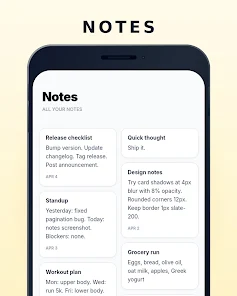
WhenSpace helps you organize tasks, events, and habits into a single calm workspace so you can see your day at a glance without juggling multiple apps. WhenSpace is designed around a focused Today view that brings timed events, actionable tasks, and habit streaks together so mornings feel simpler and less noisy. Instead of scattering notes, checklists, and calendars across several tools, this app gives you one clear place to plan the next hours and preserve momentum on recurring routines.
Key Features
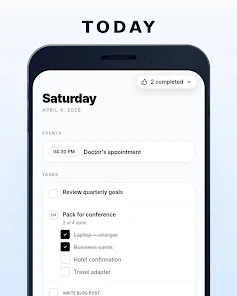
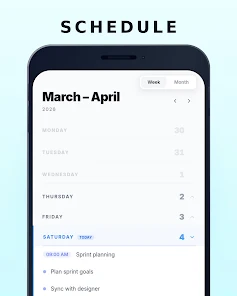
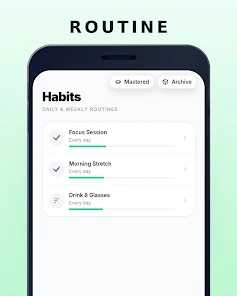
The Today screen surfaces what matters now: timed events, tasks you can check off quickly, and habits that show visual progress. Overdue items automatically rise to the top so nothing gets buried, and a sparse month view only shows days that actually contain items so you can scan ahead without distraction. Task types include a single-tap check-off for errands, a multi-item checklist for shopping or packing, and a step-focused mode that reveals only the current step to make larger tasks feel manageable. Habit tracking shows a progress bar based on an approximate 66-day formation threshold and supports simple check-ins, numeric counts, and duration-based entries. A Someday bucket captures ideas and non-urgent tasks so you can record them without committing a date.
Interaction and Controls
WhenSpace uses straightforward touch interactions so you can move from thought to action in seconds. Add a task from the quick-add field on the Today screen, tap to mark an item complete, and long-press to edit details or change a task type. Navigation favors minimal choices: the focused Today view, a seven-day horizontal week for short-term planning, and a month overview that hides empty days. These controls are intended to reduce friction rather than add layers of configuration, letting you manage items with a few deliberate taps.
Progression and Challenge Systems
Progression in WhenSpace is anchored to habit momentum and completion patterns rather than gamified points. Habit streaks and the visual progress bar make it easy to see whether you're building consistency toward the roughly 66-day milestone, and the app supports simple count-based or duration-based tracking so you can measure progress in ways that match the habit. For tasks, the step-focused task type provides a micro-progression: completing the visible step advances you to the next, which helps maintain forward motion on larger projects without the cognitive load of seeing every next item at once.
Visual Style, Customization, and Accessibility
The interface is intentionally minimal to reduce visual noise: clear typography, restrained use of color, and compact layout options that let content breathe. Users can adjust display density and font scaling to make items easier to read and to suit different screen sizes. High-contrast text, large touch targets, and simple focus modes improve accessibility for people who prefer reduced visual clutter or who use the app in busy environments. The visual approach emphasizes clarity and calm over decorative elements, supporting quick scanning and low-stress planning.
Day Structure, Replay Value, and Offline Use
Daily structure centers on a predictable rhythm: start with the Today screen to see timed events and top-priority tasks, use the seven-day view to check the week ahead, and place non-urgent ideas into Someday for later review. That predictable loop encourages daily use and makes the app naturally replayable as a morning ritual. Because the core features focus on local task and habit management, you can rely on the app to be useful even when you’re offline, keeping data available on-device for quick access and uninterrupted planning.
Who Should Use It and What It Isn’t
WhenSpace is aimed at people who want a compact, low-friction way to manage a single day and the habits that support it. It reduces app switching by combining simple task lists, timed events, and habit tracking in one place. It is not a substitute for full-featured calendar suites or heavy project-management platforms: complex scheduling rules, extensive collaboration workflows, and large-scale dependency tracking are outside its core focus. Those limitations keep the experience intentionally lightweight and focused on human-scale planning.
Getting Started Tips
Begin by using the Today screen for one day: add a few timed events, create three priority tasks, and set a single habit to track with check-ins or a duration. Use the Someday bucket for ideas you don’t want to schedule yet, and scan the seven-day view to anticipate busy days. Over time, the habit progress and the step-focused tasks reveal small wins and maintain momentum without adding complexity to your workflow.