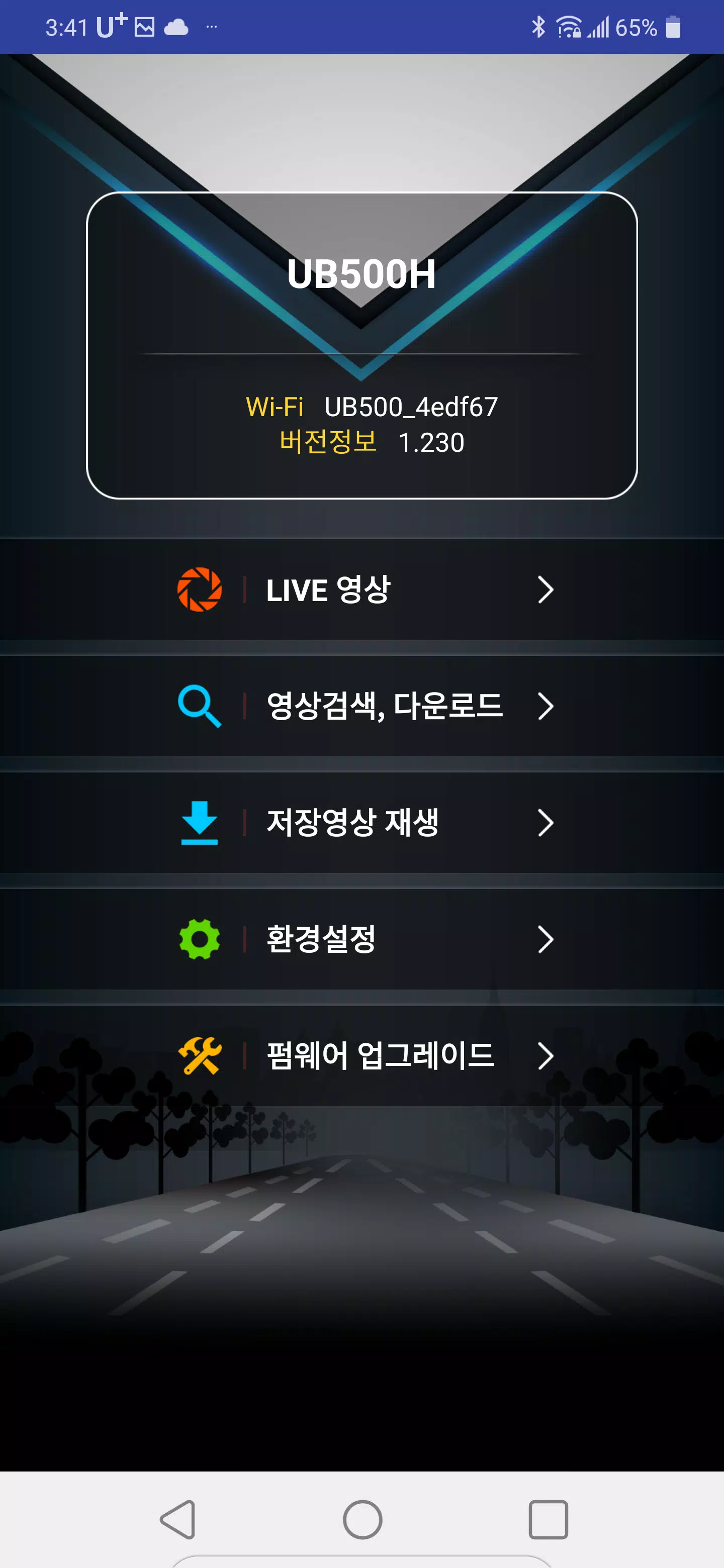
UB500DVR is a companion app for UB500 dash cameras that lets drivers manage and control their device from an Android phone. The UB500DVR app connects directly over WiFi to cameras broadcasting on the UB500 network name and creates a point-to-point link so you can view a live feed, browse recordings stored on the dash cam’s SD card, and download important clips to your phone for review or safekeeping. Designed for straightforward roadside use, UB500DVR keeps common controls and playback tools within easy reach while you are parked or conducting a quick on-the-go inspection.
Key features and user experience
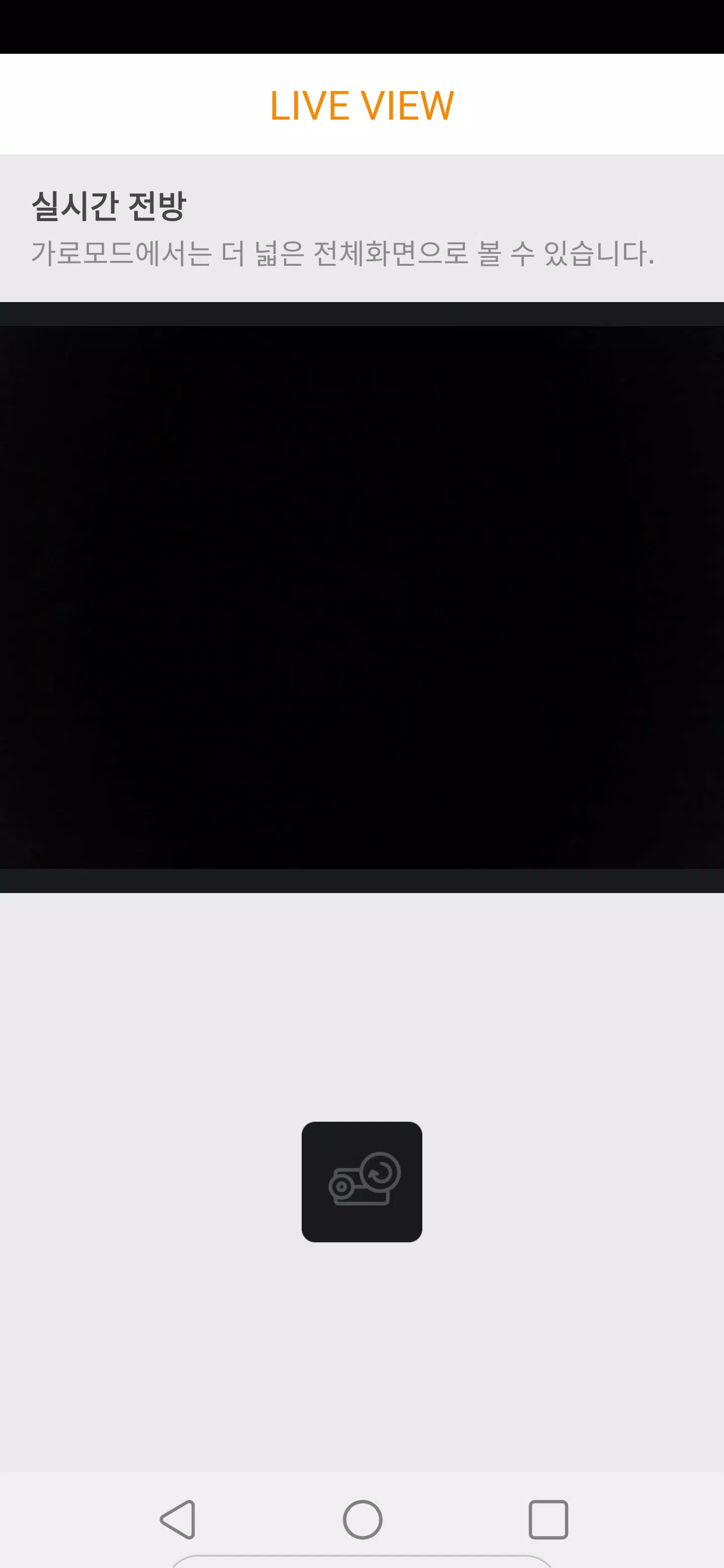
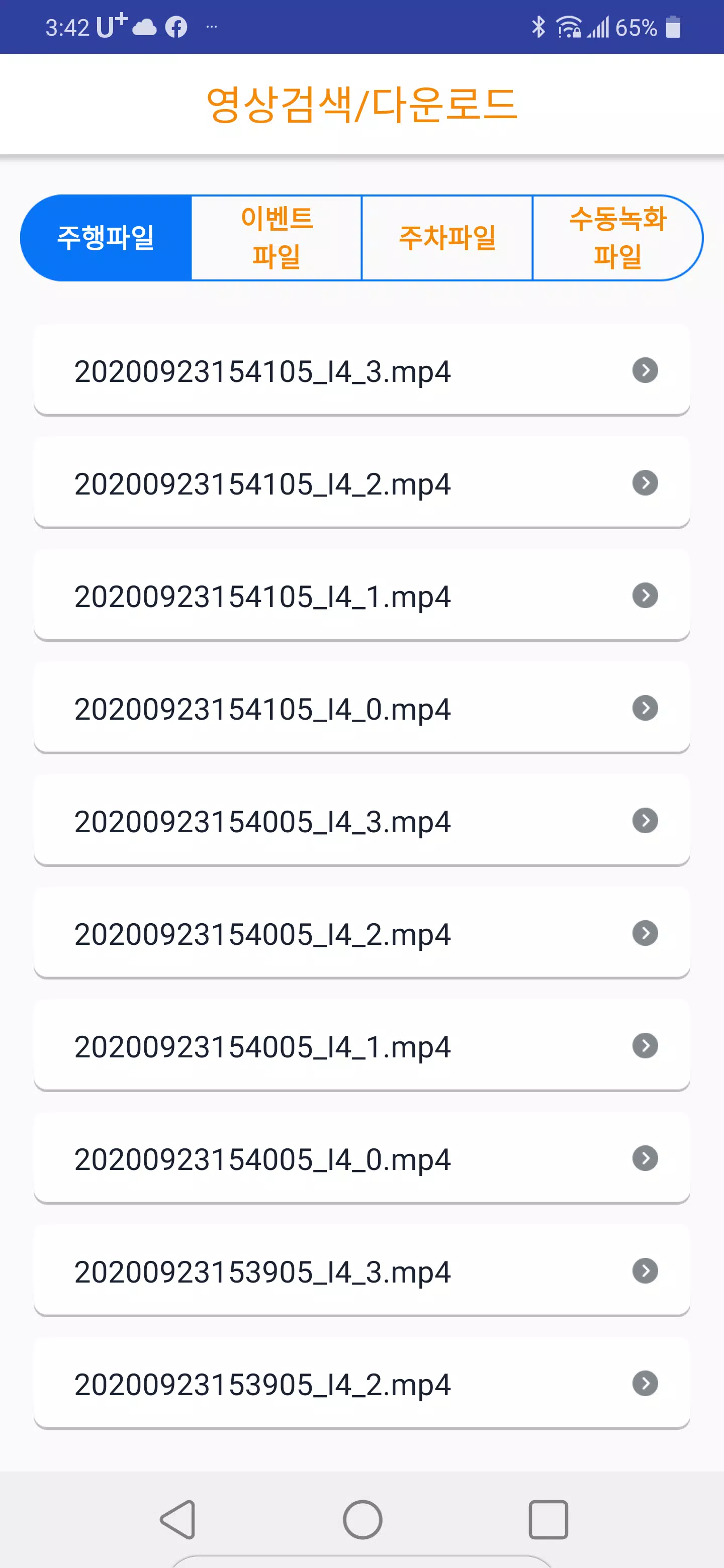
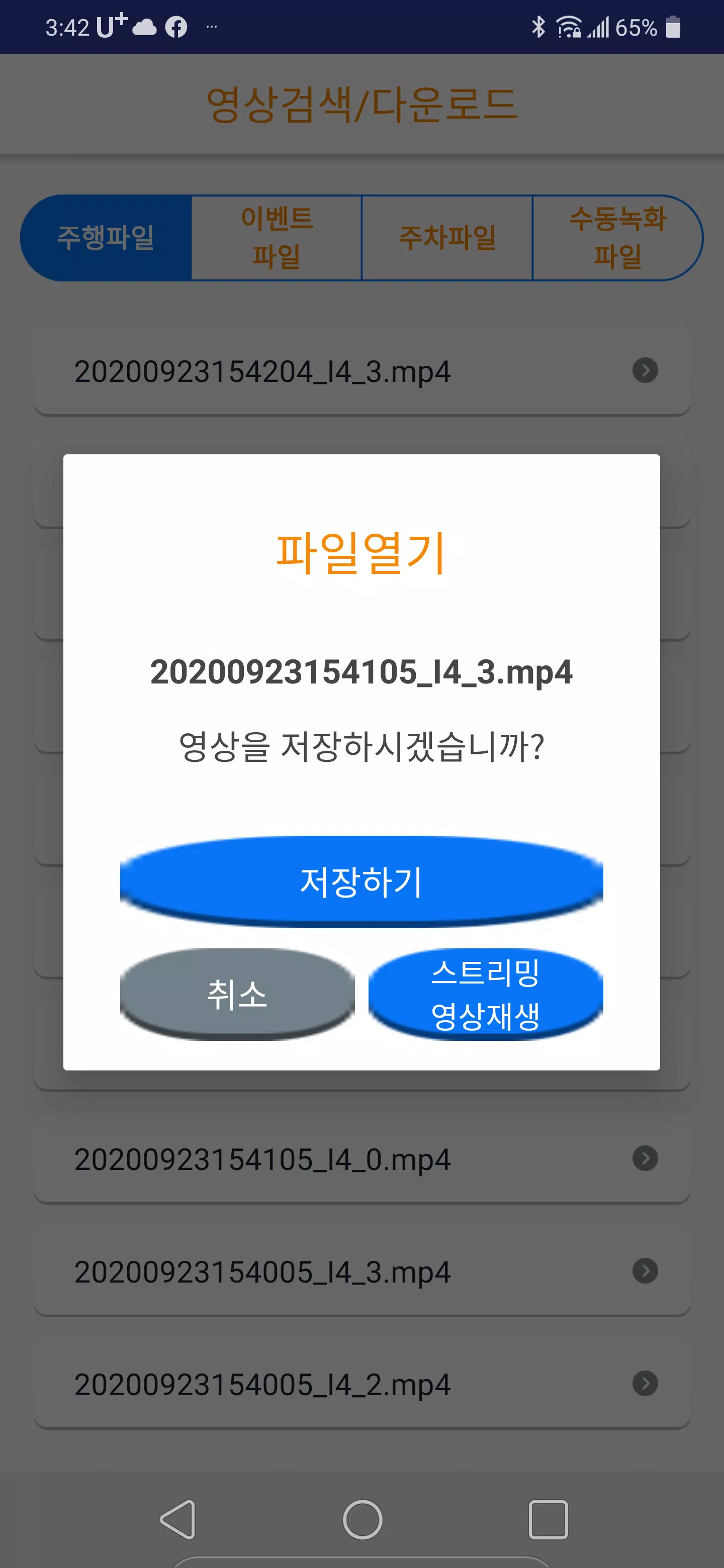
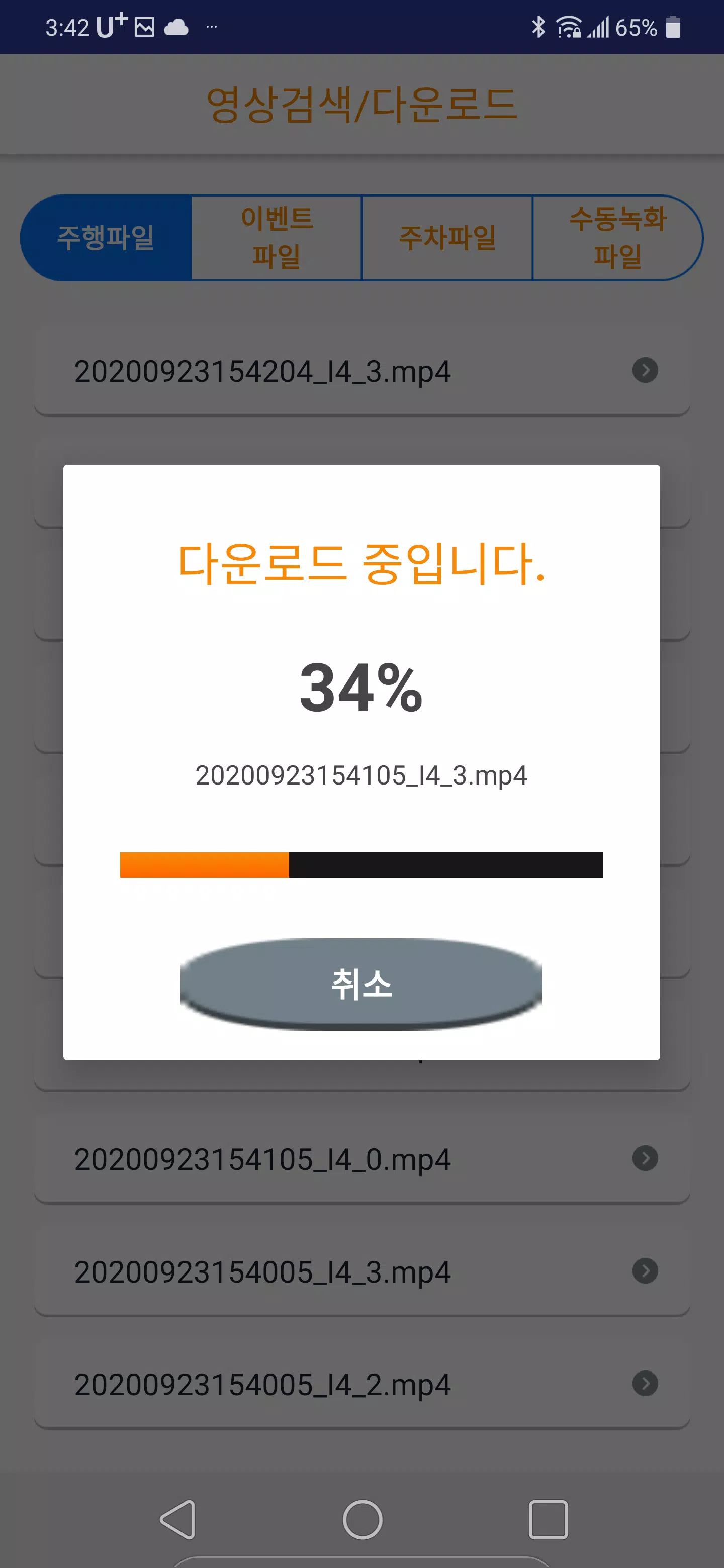
Live video streaming is central to the app’s function: UB500DVR displays a low-latency view from the dash cam that helps with camera aiming and real-time monitoring. The playback module reads the dash cam’s file structure to present recorded segments by time and date so users can quickly find incidents. File management tools allow previewing, streaming, and saving single clips or batches to internal storage, and the app plays compatible video files that are already saved on the Android device. Controls are presented as touch-friendly buttons and sliders for play/pause, fast-forward, and timeline scrubbing to simplify navigation on smaller screens.
How pairing and controls work
Pairing is automatic when your phone detects the UB500 WiFi broadcast: UB500DVR scans local WiFi networks for signals identifying the dash cam and offers a simple connect-and-authenticate flow. Once connected, the interface shows live video and a thumbnail timeline of recent recordings. Basic controls cover camera orientation checks, playback speed adjustments, and one-tap downloads. The app keeps connection settings and device identifiers in a local list for quick reconnects, and it notifies the user if the camera’s SD card is missing or if file access is restricted.
Playback, folder structure, and progression
Recordings are organized by date and file type so review is linear and predictable; users progress through footage in chronological order or jump directly to flagged segments. UB500DVR reads standard file naming schemes used by UB500 dash cams and groups loop recordings, event-marked clips, and manually recorded files into separate folders. This structure supports efficient evidence collection: you can preview a clip, mark it for download, and then save it locally without leaving the playback screen. The app preserves original filenames and timestamps to keep a clear audit trail for later reference.
Settings, customization, and accessibility
The settings panel exposes camera parameters that are safe to control from the phone, including resolution choices, loop recording length, and sensitivity levels for event detection when those options are supported by the camera. UB500DVR provides simple toggles and descriptive labels so adjustments are understandable without technical jargon. Accessibility is considered through adjustable text sizes, high-contrast display modes, and touch-target spacing that helps users operate the app while on the roadside or with limited mobility. The app stores preferences locally for consistent behavior across sessions.
Visual design, offline use, and replay value
Visual design favors clarity over ornamentation: the UI places the live view at the top of the screen with a timeline and file browser below, reducing cognitive load during quick checks. Offline playback is supported for any clips downloaded to the device, enabling review without an active connection to the dash cam. This approach gives the app practical replay value for routine trip logging, insurance documentation, or road incident review, and encourages periodic file maintenance to free SD card space.
Limitations, compatibility, and troubleshooting
The app is built specifically for UB500 dash camera systems and does not support other camera models or remote cloud access. Effective use depends on a direct WiFi connection to the dash cam and available recordings on the camera’s SD card. Users should be aware of local network restrictions and phone WiFi settings that can interrupt the connection. For best results, keep the dash cam firmware up to date, maintain a healthy SD card with sufficient free space, and use UB500DVR’s built-in diagnostic messages to identify pairing or playback errors.
Practical tips for everyday use
For routine operation, connect to the UB500 network before starting a trip to confirm camera angle and recording status, periodically download incident clips after an event, and use the app’s on-device playback to verify footage integrity. Keep a dedicated folder on your phone for exported clips to simplify sharing with insurers or authorities. With straightforward controls and predictable file organization, UB500DVR helps make dash cam management part of a regular driving checklist rather than a technical chore.