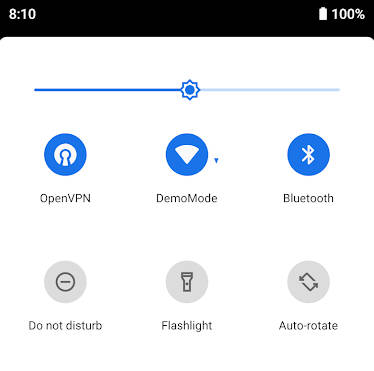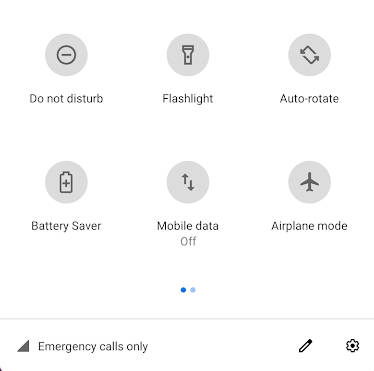
The OpenVPN Quick Settings Tile is a convenient tool for Android users who have the official OpenVPN Connect app installed. With this app, you can easily connect and disconnect a specific OpenVPN Connect profile from your Quick Settings panel. Simply edit your Quick Settings, add the "OpenVPN" tile, and with just a tap, you can establish or terminate your VPN connection. Although there may be some minor glitches, such as a slight delay or out-of-sync status, this app provides a seamless way to manage your OpenVPN Connect profiles with ease and efficiency. Please note that this app is not affiliated with OpenVPN or any other entity.
Features of OpenVPN Quick Settings Tile:
- Convenient Quick Settings Tile: OpenVPN Quick Settings Tile provides a handy Quick Settings tile for your Android device. With just one tap, you can easily connect or disconnect a specific OpenVPN Connect profile.
- Integration with OpenVPN Connect: This app seamlessly integrates with the official OpenVPN Connect app, which means you need to have the OpenVPN Connect app installed for it to work properly. If you already have the OpenVPN Connect app set up, this app is perfect for you.
- Easy Setup: After installing OpenVPN Quick Settings Tile, simply edit your Quick Settings and add the "OpenVPN" tile to your panel. It's as simple as dragging and dropping. No complicated setup process required.
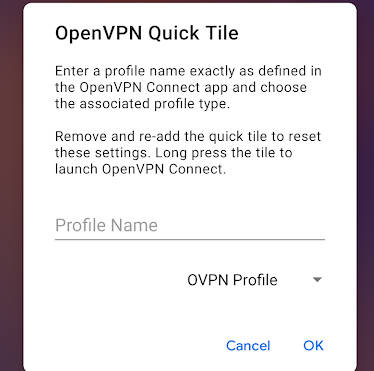
- Custom Profile Selection: When you tap the OpenVPN tile for the first time, you can easily select the specific OpenVPN Connect profile you want to use. Just type in the name of the profile exactly as it is named in the OpenVPN Connect app. You can also choose whether it is an OVPN profile or an Access Server profile.
Playing Tips for OpenVPN Quick Settings Tile:
- Install and Configure OpenVPN Connect: Before using OpenVPN Quick Settings Tile, make sure you have the official OpenVPN Connect app installed on your device. Configure your VPN profiles within the OpenVPN Connect app to ensure seamless integration with the Quick Settings tile.
- Edit Your Quick Settings: To add the OpenVPN tile to your Quick Settings panel, go to your device settings and find the Quick Settings section. Edit your panel to include the "OpenVPN" tile. You can position it anywhere within your Quick Settings for easy access.
- Select the Profile and Connect: Once you have added the OpenVPN tile to your Quick Settings panel, simply tap on it. In the prompt, enter the exact name of the profile you want to connect to and select whether it is an OVPN or Access Server profile. From there, subsequent taps on the tile will connect or disconnect the selected profile.
Conclusion:
OpenVPN Quick Settings Tile offers a convenient and user-friendly way to manage your OpenVPN Connect profiles on your Android device. With its integration with the official OpenVPN Connect app, you can easily connect or disconnect VPN profiles with just one tap. The simple setup process allows for hassle-free installation and configuration. While there may be some known issues with the app, such as slight delays or out-of-sync states, the overall functionality of the Quick Settings tile makes it a valuable tool for OpenVPN Connect users. Download OpenVPN Quick Settings Tile today and experience the convenience of managing your VPN profiles on the go.